Workflow at a glance
Coordinate artist, preparation, and session time
- Set the artist, workstation, and session duration.
- Add preparation context and reminder timing to the event.
- Offer a consultation or session window for requests, then let the studio confirm the artist, duration, and preparation before booking it.
What stays separate Consent forms, health records, deposits, and sales operations remain in dedicated studio systems.
How to record a tattoo client booking in SotiDo
SotiDo instruction
Keep consultations, tattoo sessions, available booking times, and reschedules clear without exposing client details in the public calendar.
Who this is for
Independent tattoo artists, studio administrators, and artists who coordinate client appointments in SotiDo.
What you will achieve
You will have one current private booking for the session and a public schedule that shows only the open booking times clients may request.
How sharing works
Treat a confirmed client appointment and an available booking time as different records: the booking stays private to the people who need it, while the booking time may be public.
Before you share
Decide which calendar is private for consultations and sessions. Keep consent forms, medical information, contact details, deposits, and payment records in the appropriate protected system.
Steps
Create the client booking
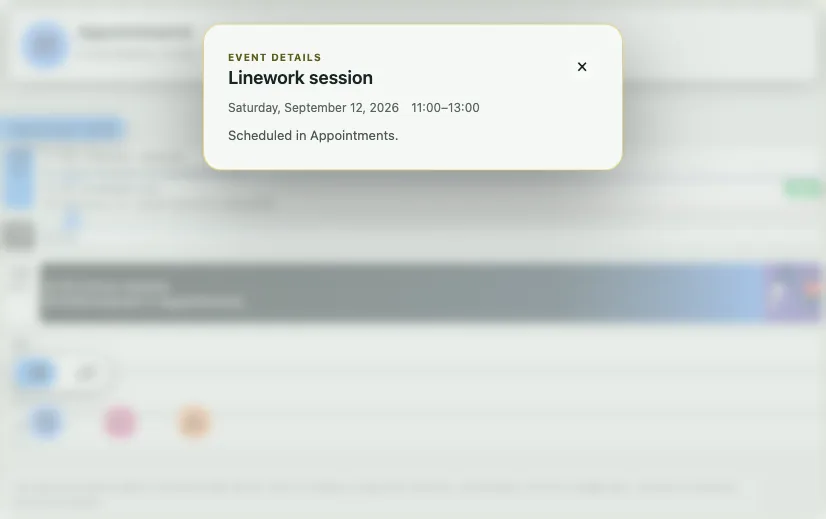
Add an event for the consultation or session. Use a recognizable but privacy-conscious title, such as the service plus a first name or initials, only inside a private calendar.
Set the working time and context
Enter the real start and end time, choose the consultations or sessions calendar, and add the artist, workstation, preparation note, or reminder in the event text when needed.
Publish open time as available for booking
Create an event marked “Available for booking” for time clients may request. A request is not an automatic confirmation or payment; review it before turning that time into a confirmed private booking.
Reschedule the original event
When the time changes, edit the existing booking instead of creating a second copy. Everyone with access then sees the same current time.
If access looks incomplete
What you may see
A client name, contact detail, or session note appears in the signed-out public view.
Why it happens
The confirmed booking was created in a public calendar or sensitive context was added to a public booking event.
What to do
Move the booking to a private calendar and leave only the neutral available booking information public.
Keep private information safe
Do not use a public event to store medical information, consent documents, payment details, or a private sketch.
Check the result
Check the calendar as an artist or administrator, then open its public page while signed out. The private booking should be visible only to authorized members, while the public view shows only the booking times intended for requests.
Controls for tattoo studio scheduling
- A personal calendar for an independent artist or a shared studio schedule.
- Role-based access for owner, admin, and artist workflow.
- Client reminders before appointment start.
- One visible update when session time changes.
Plan the visit from consultation to studio reset
Keep the consultation, the longer tattoo session, and time to prepare or reset the workstation as separate events in the relevant calendar layers. When the session duration changes, update that booking so the artist and studio team see the same current window.
FAQ
Can a tattoo studio coordinate artists and prep windows in one schedule?
Yes. SotiDo keeps artist sessions, preparation time, and appointment updates in one shared timeline for admins and artists.
How does SotiDo handle session changes and touch-up planning?
Update the session duration and time in the existing event, then adjust the next booking or preparation window. SotiDo coordinates the schedule; it is not a design archive or a medical-record system.
Can SotiDo be used alongside a dedicated business system?
Yes. Studios use SotiDo for scheduling and reminders, while finance and sales analytics can stay in a separate business system.
How can a tattoo artist mark a client booking in the calendar?
Create an event, choose the consultations or sessions calendar, then add its duration and reminder. Use an “Available for booking” event for open time; the client request still needs studio confirmation. Update the original booking when its time changes.